> ## Documentation Index
> Fetch the complete documentation index at: https://langchain-5e9cc07a-preview-contex-1789468204-c45d5ed.mintlify.site/llms.txt
> Use this file to discover all available pages before exploring further.
# Use docs programmatically
> Connect LangChain documentation to your AI tools and workflows
We want to make our documentation as accessible as possible. We've included several ways for you to use these docs programmatically through AI assistants, code editors, and direct integrations, such as Model Context Protocol (MCP).
## Quick access options
On any page in our documentation, you'll find a contextual menu dropdown in the top right corner:
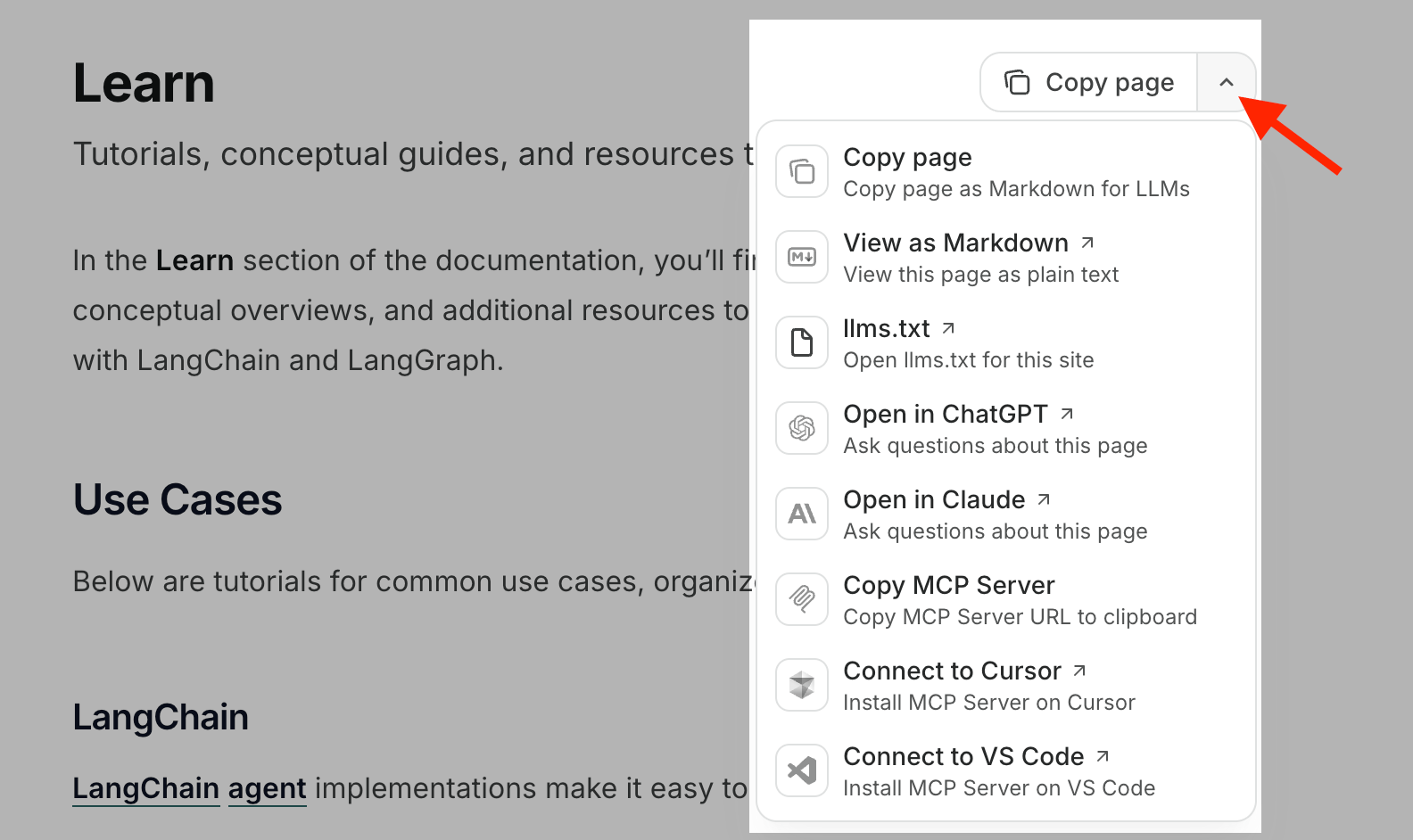
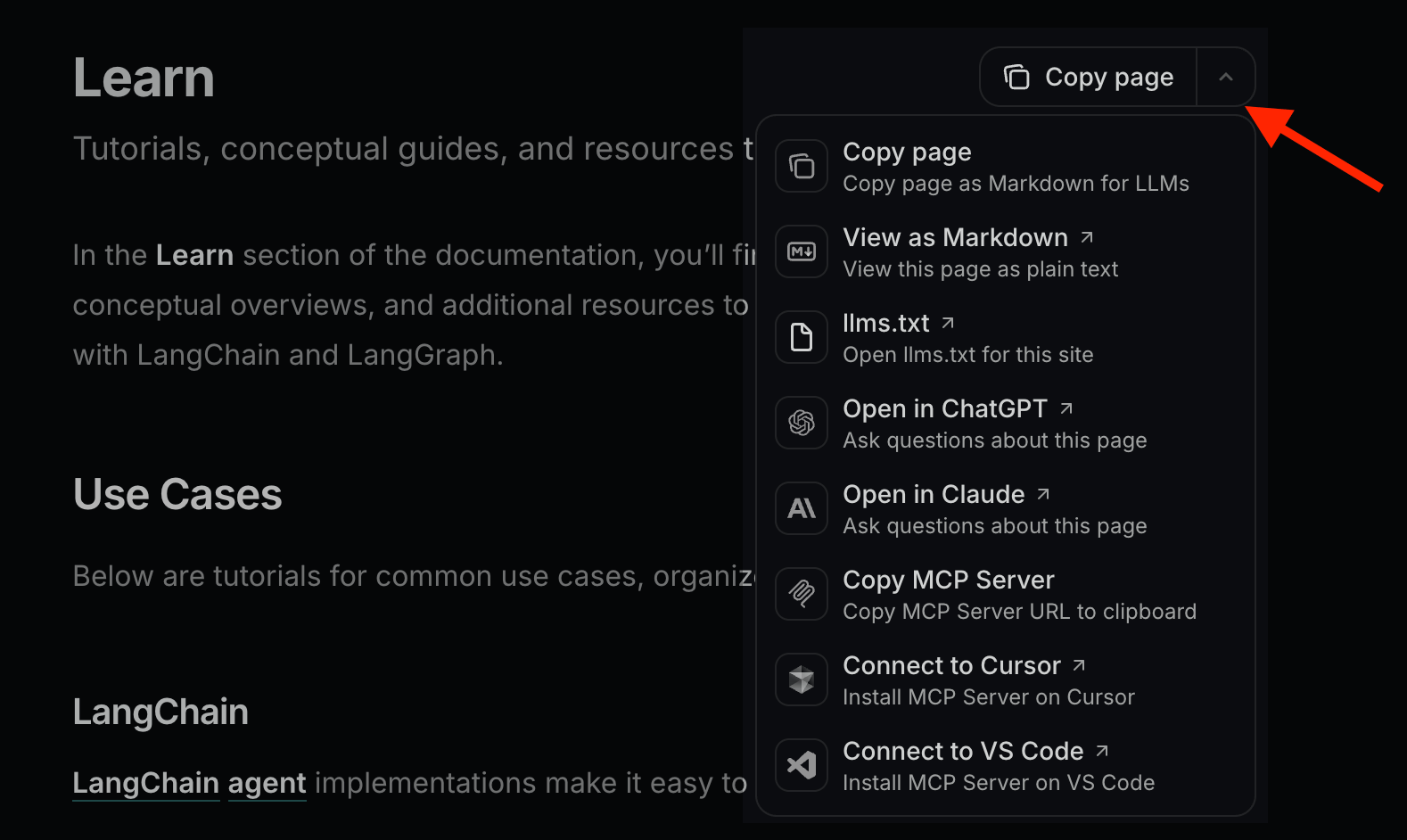 This includes our `llms.txt`, MCP server connection, and other quick access options such as ChatGPT and Claude.
## Use our MCP servers
Connect both LangChain documentation MCP servers to my coding agent so it can look up current LangChain, LangGraph, and LangSmith docs and API reference.
Servers to add:
* `docs-langchain`: [https://docs.langchain.com/mcp](https://docs.langchain.com/mcp)
* `reference-langchain`: [https://reference.langchain.com/mcp](https://reference.langchain.com/mcp)
Detect which agent or editor I am using (Claude Code, Cursor, Codex CLI, Claude Desktop, Deep Agents Code, VS Code, Antigravity, or another MCP-compatible client). Use the matching setup from [https://docs.langchain.com/use-these-docs.md](https://docs.langchain.com/use-these-docs.md):
* Claude Code: `claude mcp add --transport http` for each server (project scope by default; use `--scope user` only if I ask for global access).
* Codex CLI: `codex mcp add` with each server URL.
* Cursor, Deep Agents Code, VS Code, or Antigravity: merge both entries into the MCP settings JSON using the field names shown on that page for my client.
* Claude Desktop: add both URLs under Settings > Connectors.
Do not invent alternate MCP URLs. After configuring, confirm both servers are listed and reachable.
Our documentation exposes two complementary **Model Context Protocol (MCP) servers** that let AI applications query LangChain content in real-time. For the best results, we recommend connecting both:
| Server | URL | What it covers |
| --------------------- | ------------------------------------- | ----------------------------------------------------------------------------------------------- |
| `docs-langchain` | `https://docs.langchain.com/mcp` | Conceptual guides, how-tos, tutorials, and product docs for LangChain, LangGraph, and LangSmith |
| `reference-langchain` | `https://reference.langchain.com/mcp` | API reference: classes, methods, parameters, and signatures for all LangChain packages |
Adding both gives your coding agent access to the full picture: the **why and how** from the guides, plus the **exact API details** from the reference docs.
### Connect with Claude Code
If you're using Claude Code, run these commands in your terminal to add both servers to your current project:
```bash theme={null}
claude mcp add --transport http docs-langchain https://docs.langchain.com/mcp
claude mcp add --transport http reference-langchain https://reference.langchain.com/mcp
```
**Project (local) scoped**
The commands above add the MCP servers only to your current project/working directory. To add them globally and access them in all projects, add the user scope by including `--scope user`:
```bash theme={null}
claude mcp add --transport http docs-langchain --scope user https://docs.langchain.com/mcp
claude mcp add --transport http reference-langchain --scope user https://reference.langchain.com/mcp
```
### Connect with Claude Desktop
1. Open Claude Desktop
2. Go to Settings > Connectors
3. Add both MCP server URLs:
* `https://docs.langchain.com/mcp`
* `https://reference.langchain.com/mcp`
### Connect with Codex CLI
If you're using OpenAI Codex CLI, run these commands in your terminal to add both servers globally:
```sh theme={null}
codex mcp add langchain-docs --url https://docs.langchain.com/mcp
codex mcp add langchain-reference --url https://reference.langchain.com/mcp
```
### Connect with Cursor
Add the following to your MCP settings configuration file:
```json theme={null}
{
"mcpServers": {
"docs-langchain": {
"url": "https://docs.langchain.com/mcp"
},
"reference-langchain": {
"url": "https://reference.langchain.com/mcp"
}
}
}
```
### Connect with Deep Agents Code
Add both servers to your user-level `~/.deepagents/.mcp.json` file to make them available in every Deep Agents Code project, or add them to a project-level `.mcp.json` file for only that project:
```json theme={null}
{
"mcpServers": {
"docs-langchain": {
"type": "http",
"url": "https://docs.langchain.com/mcp"
},
"reference-langchain": {
"type": "http",
"url": "https://reference.langchain.com/mcp"
}
}
}
```
Launch or restart `dcode` to load the servers. In an interactive session, run `/mcp` to inspect server status and loaded tools. For discovery locations and precedence rules, see [MCP tools](/oss/deepagents/code/mcp-tools).
### Connect with VS Code
Add the following to your MCP settings configuration file:
```json theme={null}
{
"servers": {
"docs-langchain": {
"url": "https://docs.langchain.com/mcp"
},
"reference-langchain": {
"url": "https://reference.langchain.com/mcp"
}
}
}
```
### Connect with Antigravity
Add the following to your MCP settings configuration file:
```json theme={null}
{
"mcpServers": {
"docs-langchain": {
"serverUrl": "https://docs.langchain.com/mcp"
},
"reference-langchain": {
"serverUrl": "https://reference.langchain.com/mcp"
}
}
}
```
## Learn more
For more information about using Mintlify's MCP servers, see the [official Mintlify documentation](https://www.mintlify.com/docs/ai/model-context-protocol).
Have questions or feedback? Let us know in our [community forum](https://forum.langchain.com/).
***
This includes our `llms.txt`, MCP server connection, and other quick access options such as ChatGPT and Claude.
## Use our MCP servers
Connect both LangChain documentation MCP servers to my coding agent so it can look up current LangChain, LangGraph, and LangSmith docs and API reference.
Servers to add:
* `docs-langchain`: [https://docs.langchain.com/mcp](https://docs.langchain.com/mcp)
* `reference-langchain`: [https://reference.langchain.com/mcp](https://reference.langchain.com/mcp)
Detect which agent or editor I am using (Claude Code, Cursor, Codex CLI, Claude Desktop, Deep Agents Code, VS Code, Antigravity, or another MCP-compatible client). Use the matching setup from [https://docs.langchain.com/use-these-docs.md](https://docs.langchain.com/use-these-docs.md):
* Claude Code: `claude mcp add --transport http` for each server (project scope by default; use `--scope user` only if I ask for global access).
* Codex CLI: `codex mcp add` with each server URL.
* Cursor, Deep Agents Code, VS Code, or Antigravity: merge both entries into the MCP settings JSON using the field names shown on that page for my client.
* Claude Desktop: add both URLs under Settings > Connectors.
Do not invent alternate MCP URLs. After configuring, confirm both servers are listed and reachable.
Our documentation exposes two complementary **Model Context Protocol (MCP) servers** that let AI applications query LangChain content in real-time. For the best results, we recommend connecting both:
| Server | URL | What it covers |
| --------------------- | ------------------------------------- | ----------------------------------------------------------------------------------------------- |
| `docs-langchain` | `https://docs.langchain.com/mcp` | Conceptual guides, how-tos, tutorials, and product docs for LangChain, LangGraph, and LangSmith |
| `reference-langchain` | `https://reference.langchain.com/mcp` | API reference: classes, methods, parameters, and signatures for all LangChain packages |
Adding both gives your coding agent access to the full picture: the **why and how** from the guides, plus the **exact API details** from the reference docs.
### Connect with Claude Code
If you're using Claude Code, run these commands in your terminal to add both servers to your current project:
```bash theme={null}
claude mcp add --transport http docs-langchain https://docs.langchain.com/mcp
claude mcp add --transport http reference-langchain https://reference.langchain.com/mcp
```
**Project (local) scoped**
The commands above add the MCP servers only to your current project/working directory. To add them globally and access them in all projects, add the user scope by including `--scope user`:
```bash theme={null}
claude mcp add --transport http docs-langchain --scope user https://docs.langchain.com/mcp
claude mcp add --transport http reference-langchain --scope user https://reference.langchain.com/mcp
```
### Connect with Claude Desktop
1. Open Claude Desktop
2. Go to Settings > Connectors
3. Add both MCP server URLs:
* `https://docs.langchain.com/mcp`
* `https://reference.langchain.com/mcp`
### Connect with Codex CLI
If you're using OpenAI Codex CLI, run these commands in your terminal to add both servers globally:
```sh theme={null}
codex mcp add langchain-docs --url https://docs.langchain.com/mcp
codex mcp add langchain-reference --url https://reference.langchain.com/mcp
```
### Connect with Cursor
Add the following to your MCP settings configuration file:
```json theme={null}
{
"mcpServers": {
"docs-langchain": {
"url": "https://docs.langchain.com/mcp"
},
"reference-langchain": {
"url": "https://reference.langchain.com/mcp"
}
}
}
```
### Connect with Deep Agents Code
Add both servers to your user-level `~/.deepagents/.mcp.json` file to make them available in every Deep Agents Code project, or add them to a project-level `.mcp.json` file for only that project:
```json theme={null}
{
"mcpServers": {
"docs-langchain": {
"type": "http",
"url": "https://docs.langchain.com/mcp"
},
"reference-langchain": {
"type": "http",
"url": "https://reference.langchain.com/mcp"
}
}
}
```
Launch or restart `dcode` to load the servers. In an interactive session, run `/mcp` to inspect server status and loaded tools. For discovery locations and precedence rules, see [MCP tools](/oss/deepagents/code/mcp-tools).
### Connect with VS Code
Add the following to your MCP settings configuration file:
```json theme={null}
{
"servers": {
"docs-langchain": {
"url": "https://docs.langchain.com/mcp"
},
"reference-langchain": {
"url": "https://reference.langchain.com/mcp"
}
}
}
```
### Connect with Antigravity
Add the following to your MCP settings configuration file:
```json theme={null}
{
"mcpServers": {
"docs-langchain": {
"serverUrl": "https://docs.langchain.com/mcp"
},
"reference-langchain": {
"serverUrl": "https://reference.langchain.com/mcp"
}
}
}
```
## Learn more
For more information about using Mintlify's MCP servers, see the [official Mintlify documentation](https://www.mintlify.com/docs/ai/model-context-protocol).
Have questions or feedback? Let us know in our [community forum](https://forum.langchain.com/).
***
[Connect these docs](/use-these-docs) to Claude, VSCode, and more via MCP for real-time answers.
[Edit this page on GitHub](https://github.com/langchain-ai/docs/edit/main/src/use-these-docs.mdx) or [file an issue](https://github.com/langchain-ai/docs/issues/new/choose).